Office Ribbon Frustrations: Use the Quick Access Toolbar
I continue to find new and frustrating things when using Excel 2007. For example, in most spreadsheets I want to freeze the top row and sometimes columns. To do this, I need to remember that I first need to go to the View Ribbon. If I want to use a Macro, it's not on the Insert or Data Ribbon, as I expected, but it is also on the View Ribbon. For Print Preview, you need to go to the Office Button and select the Print arrow. Needless to say, some of the most common tasks I perform are now hidden and/or further clicks away.
One way to make some of these tasks easier is to use the new Quick Access Toolbar. The Quick Access Toolbar is the toolbar just right of the Office Button, above the Ribbons. By clicking the drop-down arrow to the right of the toolbar, you can customize the toolbar with your favorite shortcuts.
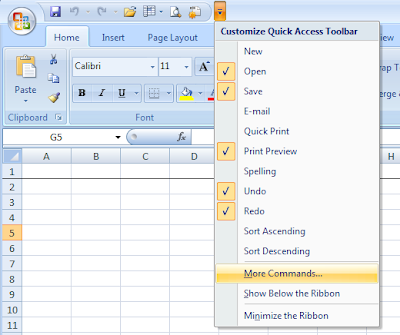 Here's how to customize the Quick Access Toolbar.
One way to make some of these tasks easier is to use the new Quick Access Toolbar. The Quick Access Toolbar is the toolbar just right of the Office Button, above the Ribbons. By clicking the drop-down arrow to the right of the toolbar, you can customize the toolbar with your favorite shortcuts.
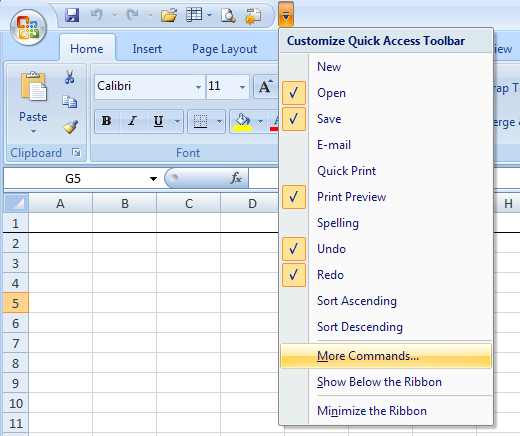 Here's how to customize the Quick Access Toolbar.
- Click the drop-down arrow to the right of the Quick Access Toolbar
- Click on "More Commands...". This should open the Options dialog, with the Customize window open (see the left menu to change the open window).
- In the window, the left column displays possible short-cuts, while the right column displays your current shortcuts. Select from the drop-down above the left column to get a list of Popular Commands, Commands Not in the Ribbon, All Commands, Macros, or by various Ribbon Tabs and sub-Tabs.
- Once you find the short-cut you want to add to the Quick Access Toolbar, click it to select it.
- Now click the "Add>>" button that is between the two columns.
- Select others and click "Add >>" again to add more to the Quick Access Toolbar.
- In the right column, by selecting a short-cut, you can then remove it or change its order.
- When completed, click "OK"

Comments