Active window loses focus
Do you ever have the experience where your typing away, say in Word, and another program pops-up and takes focus, forcing you to click back on the program you were working in? This happens the most to me when a new IM conversation begins in Trillian. It's not a problem once the conversation is going, just for new ones.
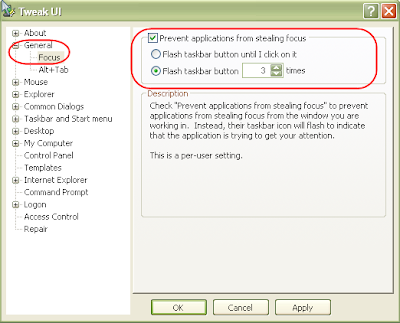
Where there are a couple of work-arounds to prevent this from happening. Perhaps the easiest is to get Microsoft's Tweak UI to disable it. Look for Focus in the General section of Tweak UI.
You can also do this through a registry setting:

While your in the Registry Editor, you can also set how many times the Window seeking your attention flashes in your taskbar. This is another setting within HKEY_CURRENT_USER | Control Panel | Desktop:
I have heard (though not experienced) that some times newly installed applications will change your setting back (allowing focus to be taken again). One work around is to execute a registry update each time you reboot (the other is to get a different program that wont make this change). Here is how you would create the file to execute each time you rebooted:
Where there are a couple of work-arounds to prevent this from happening. Perhaps the easiest is to get Microsoft's Tweak UI to disable it. Look for Focus in the General section of Tweak UI.

You can also do this through a registry setting:
- Start the Registry Editor: Go to Start | Run and enter regedit [Enter]
- Find HKEY_CURRENT_USER | Control Panel | Desktop
- Go to the Edit menu and select New > DWORD value
- Name the DWORD value "ForegroundLockTimeout"
- Assign a value of 30d40
- Close the Registry Editor

While your in the Registry Editor, you can also set how many times the Window seeking your attention flashes in your taskbar. This is another setting within HKEY_CURRENT_USER | Control Panel | Desktop:
- Add another new DWORD
- Name it "ForegroundFlashCount"
- Set it to the value equal to the number of flashes you want, e.g. 3
I have heard (though not experienced) that some times newly installed applications will change your setting back (allowing focus to be taken again). One work around is to execute a registry update each time you reboot (the other is to get a different program that wont make this change). Here is how you would create the file to execute each time you rebooted:
- Open a text editor such as Notepad
- Type the following (or copy and paste):
Windows Registry Editor Version 5.00
[HKEY_CURRENT_USER\Control Panel\Desktop]
"ForegroundLockTimeout"=dword:00030d40 - Save the file focus.reg. If your using Notepad, be sure to quote it ("focus.reg"), otherwise it will add a .txt extension (focus.reg.txt).
- To get this file to execute with each new start, go to Start menu | All Programs
- Right-click on Startup and choose Explore

- Right-click in the right pane of your new Explorer window and choose New > Shortcut
- In the Shortcut Wizard, locate your registry file, Focus.reg
- The entry will contain the entire path, and will be quoted. To avoid being prompted each time to allow the Registry to be updated, enter regedit /s before the first quote. i.e. regedit /s "C:\Documents and Settings\Chris\Desktop\focus.reg"
- Name your shortcut, e.g. Focus


Comments
I just hope you cud help me !! thnx alot in advance
Just to confirm, you are still seeing this problem after following the tips on this page?
If so, have you tried a different keyboard?
Thnx alot for answering back ...
I just try what you have suggested and get back to you soon
Looks like you left an end bracket off of your focus.reg:
Windows Registry Editor Version 5.00
[HKEY_CURRENT_USER\Control Panel\Desktop
"ForegroundLockTimeout"=dword:00030d40
Should have an end bracket after "Desktop", right?
I tried this and it works, but doesn't end up actually working for me. The focus.reg seems to be at least changing that entry to 00030d40. But I suspect that there is some other process that is changing it to zero somewhere earlier in the process. Not sure.
I tried using Process Monitor to see what was going on but the boot log doesn't work for me. I'm running Vista SP1.
Specifically, Photoshop steals focus every time. Running Photoshop CS3. Other software seems to not steal focus (Quicken, FileZilla, Mozilla Sunbird, XnView etc), but it also doesn't flash in the taskbar.
Is Photoshop diabolical in this way?
Thanks for the tips!
Thanks for pointing out the missing bracket -- now fixed. I've used this for WinXP; I have not tested with Vista. According to Microsoft, you are suppose to change the setting to zero in decimal (http://support.microsoft.com/default.aspx?scid=886217) - you might want to give that a shot.
I didn't see a mention on microsoft.com of the need to restart my PC before Tweak UI would work, but in fact I did need to restart my PC.