Find and Replace special characters in Word
I recently had a list of items that I wanted to grab from a web page drop-down list. Of course you can't copy a drop-down list, but... you can view the source and get the list. The problem though is, "how do you remove the option tags and the value?" As you may have guessed by the title, you can do it with Word.
Here's a sample taken from News.com:
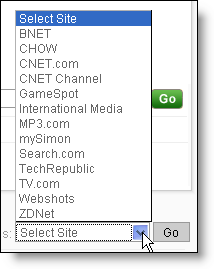

Here's a sample taken from News.com:


- Copy the list and paste it into Word.
- Open the Find and Replace dialog (Edit | Replace... or Ctrl + H).
- Click the More button and check Use wildcards.
- Here's the trick, as you need to use special characters. First, paste the string you want to remove in the Find what: field.
- For each greater than and less than character, place a backslash before it, i.e. < becomes \< .
- Replace the contents of the value field with an asterisk.

- Validate Word will be able to find the code by clicking the Find Next button -- the code should now be highlighted.
- Go to the Replace with: field and enter ^p. This will replace your code with a carriage return.
- Press the Replace button once to validate that it works as expected.
If not, close the Find and Replace dialog and then enter ctrl+z to undo, then return to the Find and Replace dialog to correct the error.
- Now press Replace All button to replace all the code with a carriage return.
- Likely the beginning code and ending code will still exist, as they are different than the rest. Delete those two entries and you are done.



Comments
Actually I just wanted to delete all these entries from my word list.
So I took the find and replace tool and put to find this: "1\|\[*\]".
And it works! Word finds this! Cool, isn't it? Thank you very much!